Diwali Low-Light Photo & Video AI Fix: Free Mobile Workflow
How to fix dark, grainy Diwali diya portraits and sparkler videos using free smartphone AI tools. Complete dual English & Hindi tutorial.
Night Contrast Challenge: Blinding flame highlights vs. dark courtyard shadows
High-Speed Light Trails: Preserving sparkler sparks without digital sensor grain
Harsh flare around clay oil lamps, dark underexposed faces, heavy digital noise in the shadows.
Warm golden candlelight glow on faces, sparkler trails sharp, clay texture visible with clean shadow recovery.
The Optical Challenge of Diwali Night Photography
Diwali photos have extreme dynamic contrast: a tiny oil lamp (diya) or burning sparkler (phuljhadi) is blindingly bright, while family faces sitting 2 feet away are completely in deep shadow.
If your phone exposes for the flame, faces turn black. If it exposes for faces, the diya blows out into an ugly white bulb of flare.
The Free 3-Step AI Balancing Workflow
- Shadow Recovery without Noise: Open the photo in Lightroom Mobile (Free) or Snapseed. Pull Shadows up by
+25and drag Highlights down by-40to tame the flame. - AI Noise Clean-Up: Pass the photo through Clipdrop or Remini (Free mode) to clean the grainy shadows around traditional kurta and saree fabrics.
- Atmospheric Warmth Calibration: Set color temperature between +6 and +10 Warmth to bring out the natural glow of mustard oil and brass lamps.
दिवाली की रात दियों और फुलझड़ियों की फोटो खराब क्यों आती है?
दिवाली की रात कैमरे के लिए सबसे मुश्किल होती है: जलता हुआ दीया या फुलझड़ी बहुत ज्यादा चमकदार होती है, जबकि पास बैठे परिवार के लोगों के चेहरे अंधेरे में छिप जाते हैं।
अगर फोन दीये की रोशनी पर फोकस करता है तो चेहरा काला हो जाता है, और अगर चेहरे पर फोकस करता है तो दीये की लौ एक सफेद धब्बा बन जाती है।
3-स्टेप में बिल्कुल फ्री में फोटो बैलेंस करने का तरीका
- अंधेरे को साफ करें (Shadow Recovery): Snapseed ऐप में फोटो खोलें। Shadows को
+25बढ़ाएं और Highlights को-40घटाएं ताकि दीये की लौ साफ दिखने लगे। - ग्रेन और दाने हटाएं (AI Clean-up): Clipdrop से बैकग्राउंड के अंधेरे में आने वाले काले-नीले दानों को चुटकियों में साफ करें।
- सुनहरा गर्म रंग दें (Warm Tone): कलर टेम्परेचर को हल्का सा पीला (Warm +8) रखें ताकि मिट्टी के दीयों और पीतल की थाली की असली चमक निखर कर आए।
Quick Answers
Is this workflow completely free, or do I need a paid plan?+
The core workflow uses free or freemium tools (like the ones named in this guide). Where a premium version helps, I say so explicitly so you can start at ₹0 and only upgrade if you need the extra quality.
Which app works best on a mid-range Android phone?+
On budget Android, the mobile-native tools (CapCut, Snapseed, VN) run best without lag. The desktop/browser AI tools give higher results but need a computer or decent phone, so match the tool to the hardware you actually have.
Will these results look "AI-ish" or fake to viewers?+
No — that's the whole point of the multi-pass approach. The key is to preserve natural texture, reflection, and physics (as explained in the steps above) rather than letting one aggressive pass wash everything out. Done right, it looks like the original scene.
More Guides & Reviews
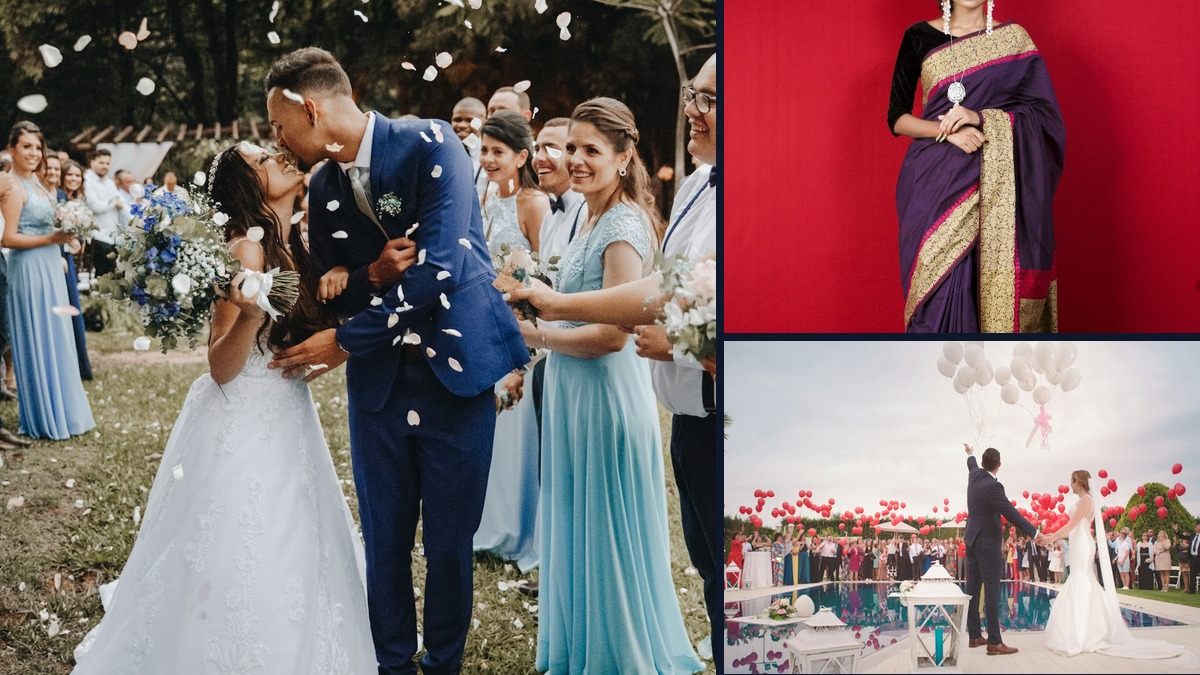
3 Free AI Tools to Fix Grainy, Low-Light Wedding & Sangeet Videos on Your Phone
How to de-noise, upscale, and salvage dark, muddy wedding and party video clips directly on iOS and Android without paying for expensive desktop software. Dual English & Hindi guide.
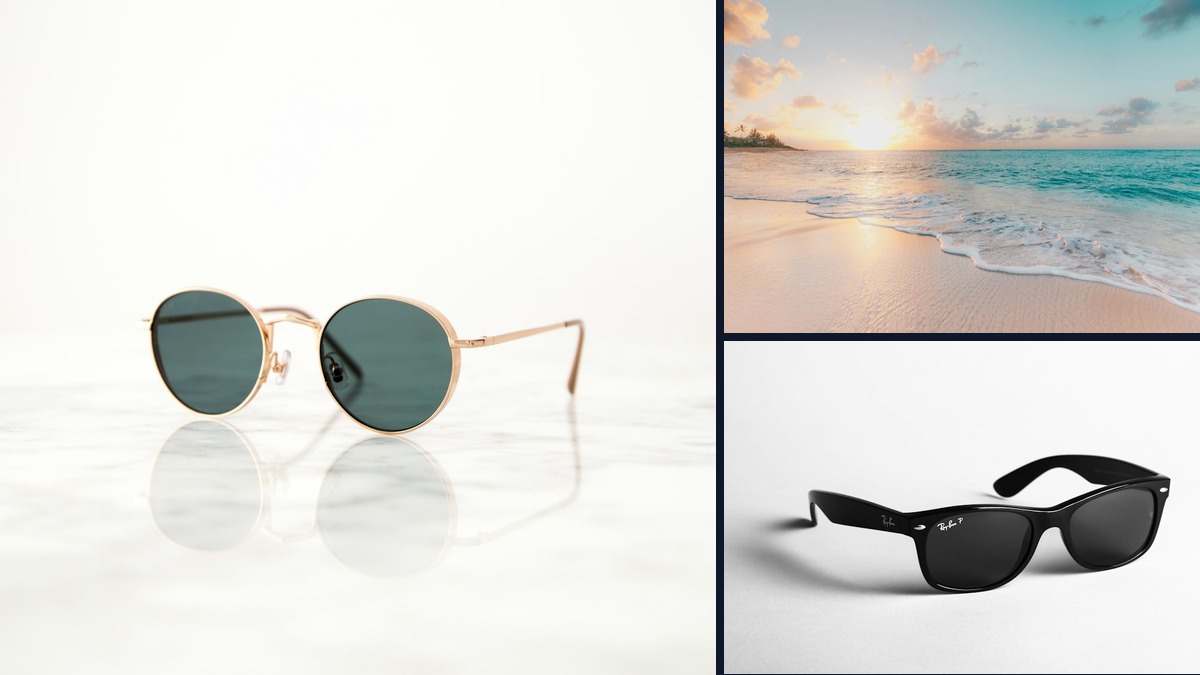
Are Meta Ray-Ban Smart Glasses Worth It for Travel & Street Vlogging in India?
We tested the Meta Ray-Ban smart glasses across bustling Indian railway stations, street food markets, and night bazars. Honest dual English & Hindi review.
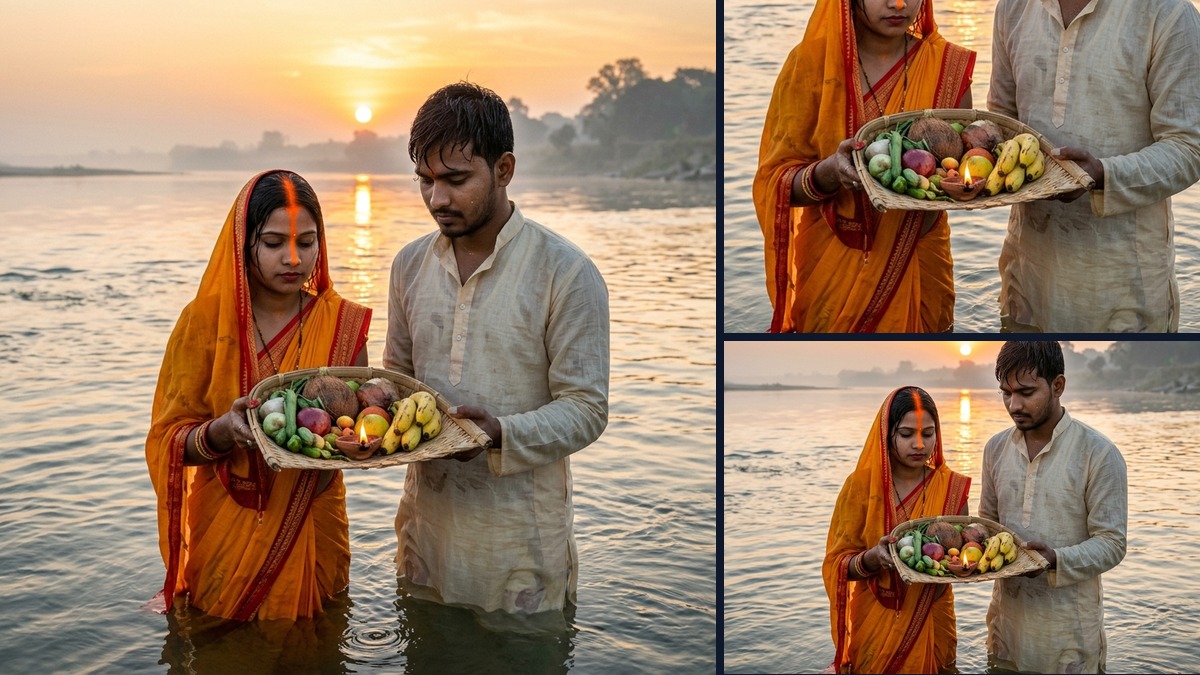
Chhath Puja Couple Photo AI Prompts: Free Workflow for Indian Festivals
How to craft realistic, respectful, and culturally accurate Chhath Puja young adult couple portraits using free AI tools without cartoon artifacts. Dual English & Hindi guide.
How to Start an AI Photo Restoration Side-Hustle for Local & Online Clients
Step-by-step blueprint to restore torn, faded, and low-res family portraits using AI. Turn this high-demand service into a ₹25,000 to ₹50,000/mo micro-hustle. Dual English & Hindi guide.